What messages are being logged into your CRM
SyncIn gives you control over which messages get synced to your CRM. Here's how it works and how to change the setting.
Default: Business Only
By default, SyncIn only logs messages when there is an active match in your CRM. This means:
- WhatsApp — a message is only logged if the phone number of the person you're chatting with matches a phone number on an existing contact in your CRM.
- LinkedIn — a message is only logged if the LinkedIn profile URL of the person messaging you matches the LinkedIn URL field on an existing contact in your CRM.
If there is no matching contact in your CRM, the message is simply ignored — it is not logged, not stored, and not uploaded anywhere. This keeps your personal conversations completely private.
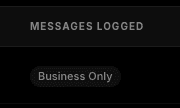
When set to Business Only, only messages with matched CRM contacts are logged.
Alternative: All Messages
If you prefer to log every message — regardless of whether the contact exists in your CRM — you can switch to All Messages mode. In this mode, SyncIn will create a new contact in your CRM automatically if no match is found, and log the message under that contact.
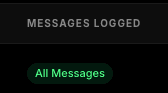
When set to All Messages, every conversation is logged into your CRM.
How to change the setting
You can switch between Business Only and All Messages at any time from your dashboard:
- Go to your Dashboard and find the member row you want to update.
- Click the three dots menu (…) on the right side of that member's row.
- Select “Switch to All Messages” or “Switch to Business Only” depending on your current setting.
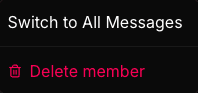
The three dots menu lets you toggle the logging mode per member.
The change takes effect immediately. You can switch back at any time.
How to see what messages are being logged
You can verify which messages are being synced to your CRM in two ways:
SyncIn Dashboard
The Messages Logged column in your member table shows the current mode for each member. The activity log on the dashboard shows every message that has been synced along with its status (synced, pending, or failed).
CRM contact timeline
Open any contact in your CRM and check their activity timeline. You'll see logged WhatsApp and LinkedIn messages appear as communication entries with the full message content and timestamp.
Quick reference
| Scenario | Business Only | All Messages |
|---|---|---|
| Contact exists in your CRM | ||
| Contact does not exist in your CRM | ||
| New contact auto-created in your CRM |
In short
By default, SyncIn only logs messages from people who already exist in your CRM. You can switch any member to “All Messages” to log everything. The setting can be changed at any time from the three dots menu on the member row in your dashboard.